Adding your team
Give each person their own sign-in, with access to what they need and nothing else.
In the console: Settings → Team
Don't share one password. Give everyone who works on the store their own sign-in, so you can see who did what and remove one person without disturbing the rest.
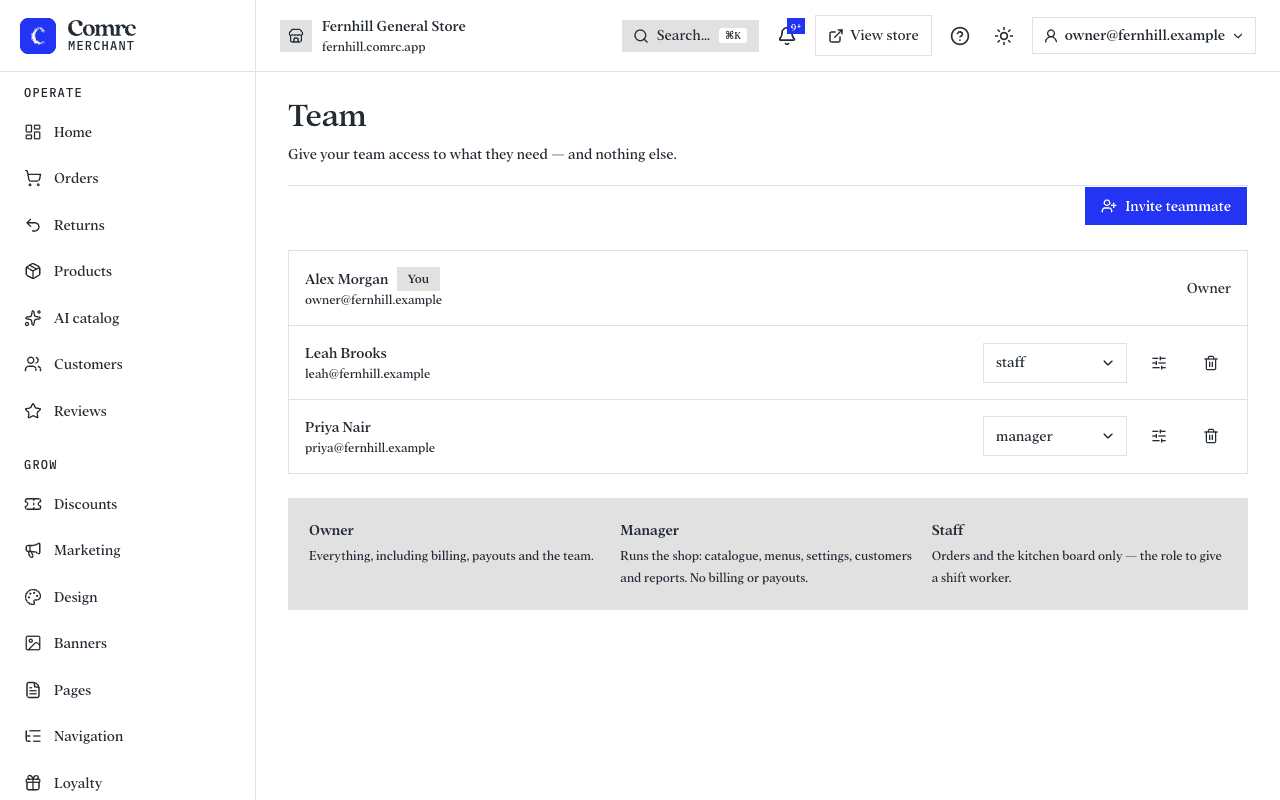
Roles
- Owner — everything, including billing, payouts and the team. Every store needs at least one owner.
- Manager — runs the shop: products, menus, settings, customers and reports, as well as orders. No billing, payouts or team.
- Staff — orders and the kitchen board only. The role to give a shift worker.
The Team page also lists what each role can do. You can change someone's role from their row, and the Two-step column shows who has two-step sign-in on.
Invite someone
- Open Settings, then Team (the page is titled Staff and permissions), and press Invite member.
- Enter their name and email and choose a role.
- Press Send invite. They get an email with a link to set their own password and join. The link works once and expires after 14 days.
Until they accept, they show as Invited with the date the link expires. If it goes astray or runs out, press Resend invite on their row. See Signing in for what they see.
Remove someone as soon as they leave, so they can no longer sign in.
Extra access for one person
A role sets the baseline. With Edit access on a person's row you can grant them extra areas on top, for example Reports for a Staff member. Per-member permissions are included from the Multi-store plan for shops and the Multi-site plan for food and drink. Team management always stays with owners.
How many people your plan includes
Plans include a number of staff accounts on top of the owner: 1 on Flex and Start (Direct for food and drink), 5 on Grow (Operations), 10 on App (Complete), and unlimited on Multi-store (Multi-site). The Team page shows how many you are using, and pending invitations count. If you are at your limit, it shows a prompt to upgrade. See Billing and plans.
Note Only an owner can manage the team.
Still stuck?
Email support@comrc.app and we'll help you out.