Keeping your account secure
Add a second step at sign-in, require it for your whole team, choose how you sign in, reset a forgotten password, and what to do if you think someone else has access.
In the console: Settings → Security
Your console holds your customers' details and your takings. A second step at sign-in means a stolen password isn't enough to get in.
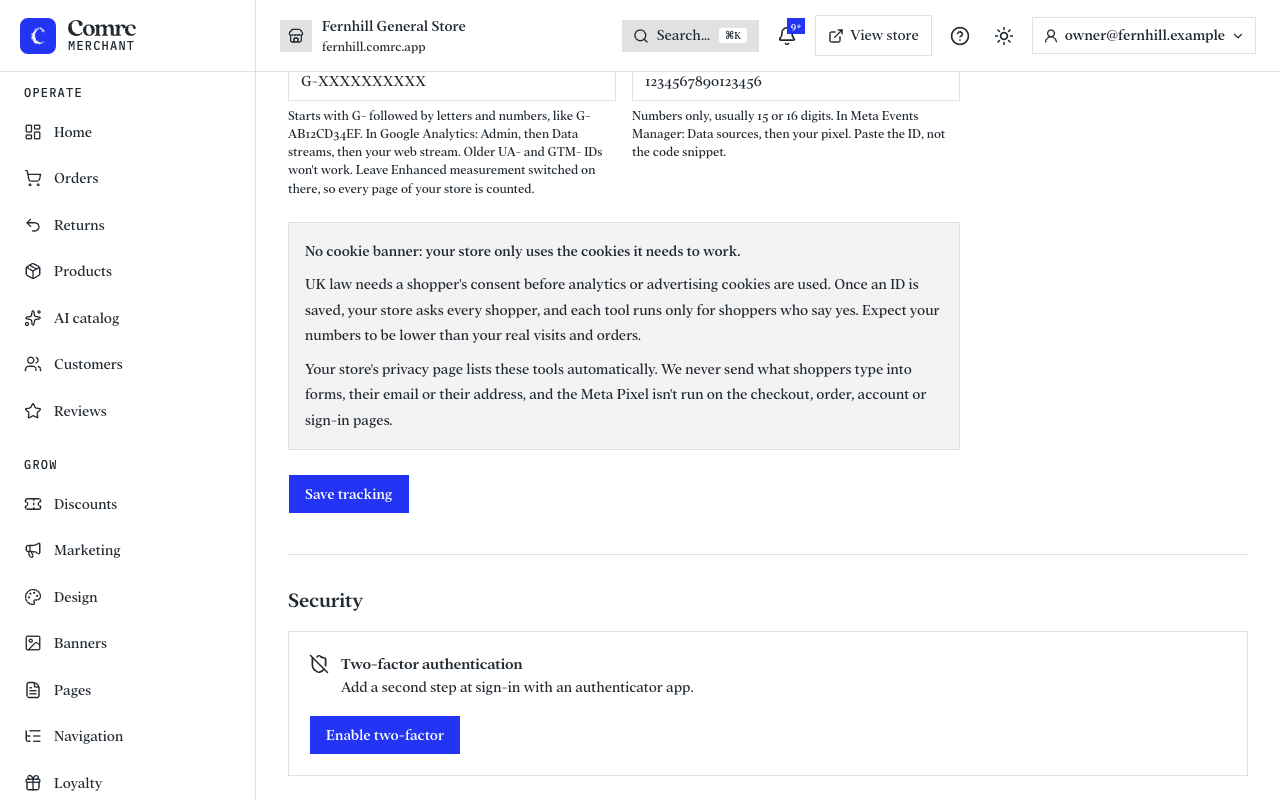
Turn on two-step sign-in
- Install an authenticator app on your phone, such as Google Authenticator, Microsoft Authenticator or 1Password.
- In Settings, under Security, start the setup and add the account to your app with the setup key shown.
- Enter the six-digit code from the app to confirm.
- Save the recovery codes somewhere safe. Each can be used once if you lose your phone.
From then on, signing in asks for your password and a code from the app. Each teammate sets this up for their own sign-in. If you sign in with Google or Apple and have no password, set one first with Forgot password on the sign-in page, or manage two-step sign-in from the Comrc app, so Comrc can confirm it's you.
Require two-step sign-in for everyone
As the owner, you can make two-step sign-in compulsory for your whole team. It's a switch called Require two-step sign-in for everyone, near the top of the Team page.
- Turn on two-step sign-in for your own account first. The switch asks you to, and links to Security.
- Open Settings → Team and switch on Require two-step sign-in for everyone.
- Teammates who don't have it yet are signed out. Next time they sign in, they set it up before they can use the store.
The Team page shows how many members still have to set it up. To stop requiring it, switch it off and confirm it's you with your password (or your Google or Apple account) and a code from your authenticator app, because it lowers everyone's protection.
Sign-in methods
Under Settings → Security, Sign-in methods lists the ways you can sign in to this store: your password, Google and Apple. Add one to sign in with it too, or remove one you no longer want. To add or remove a method you confirm it's you first, with your password or a method you already use, plus a code if you have two-step sign-in on. You can't remove your last method.
Forgotten password
On the sign-in page choose Forgot password and enter your email. You'll get a link to choose a new one.
If you think someone has access
- Change your password straight away.
- Turn on two-step sign-in if it isn't on.
- Check Team for anyone who shouldn't be there, and remove them.
- Email support@comrc.app and we'll help you check what happened.
Still stuck?
Email support@comrc.app and we'll help you out.