Building your catalogue faster with AI
Describe what you sell, paste a list, or upload photos, and get draft products to check and accept.
In the console: Products → AI catalog
AI catalog drafts products for you. Nothing it drafts goes on sale by itself: you check each draft, change anything that's wrong, and accept the ones you want.
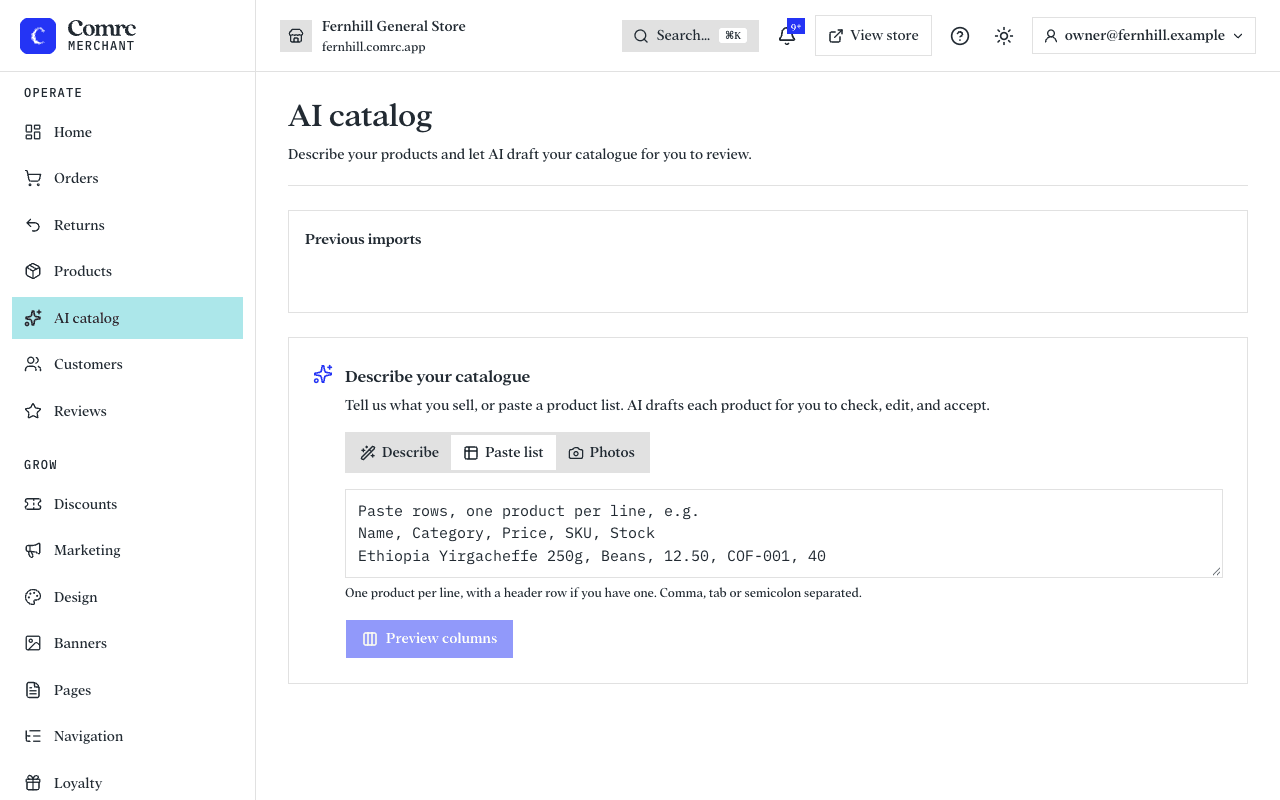
Three ways to start
- Describe what you sell — a sentence or two, such as "a small coffee roastery selling single-origin beans, ground coffee and a few branded mugs". The more detail you give, the better the drafts.
- Paste a product list — one product per line, with a header row if you have one. Each column is matched to a product field for you to confirm. Your prices are read exactly as you typed them.
- Upload photos — one product per photo works best. Each photo becomes a draft with a name, description, category and suggested price. Add a note for anything the camera can't show, like sizes or materials.
Check, then accept
- Read each draft. Edit the name, description, price and stock where needed.
- Look for drafts marked "Unverified price" — the price was suggested, not given by you. Set the real price before accepting.
- Accept the drafts you want. They are created as inactive products, so shoppers don't see them yet.
- Open Products, review them, and make each one active when you're happy.
Note A pasted list is read exactly as you typed it: nothing is invented, and AI only helps match your column headings to product fields. Describing your shop and uploading photos use your plan's monthly AI allowance: 3 on Flex, 10 on Start or Direct, 30 on Grow or Operations, and 100 on App, Multi-store, Complete and Multi-site. Unused ones don't roll over, and Settings → AI shows how many you have used. See AI tools for the rest.
Still stuck?
Email support@comrc.app and we'll help you out.