Managing orders
Follow an order from the moment it arrives to the moment the customer has it: confirm, send, deliver, and what to do when plans change.
In the console: Orders
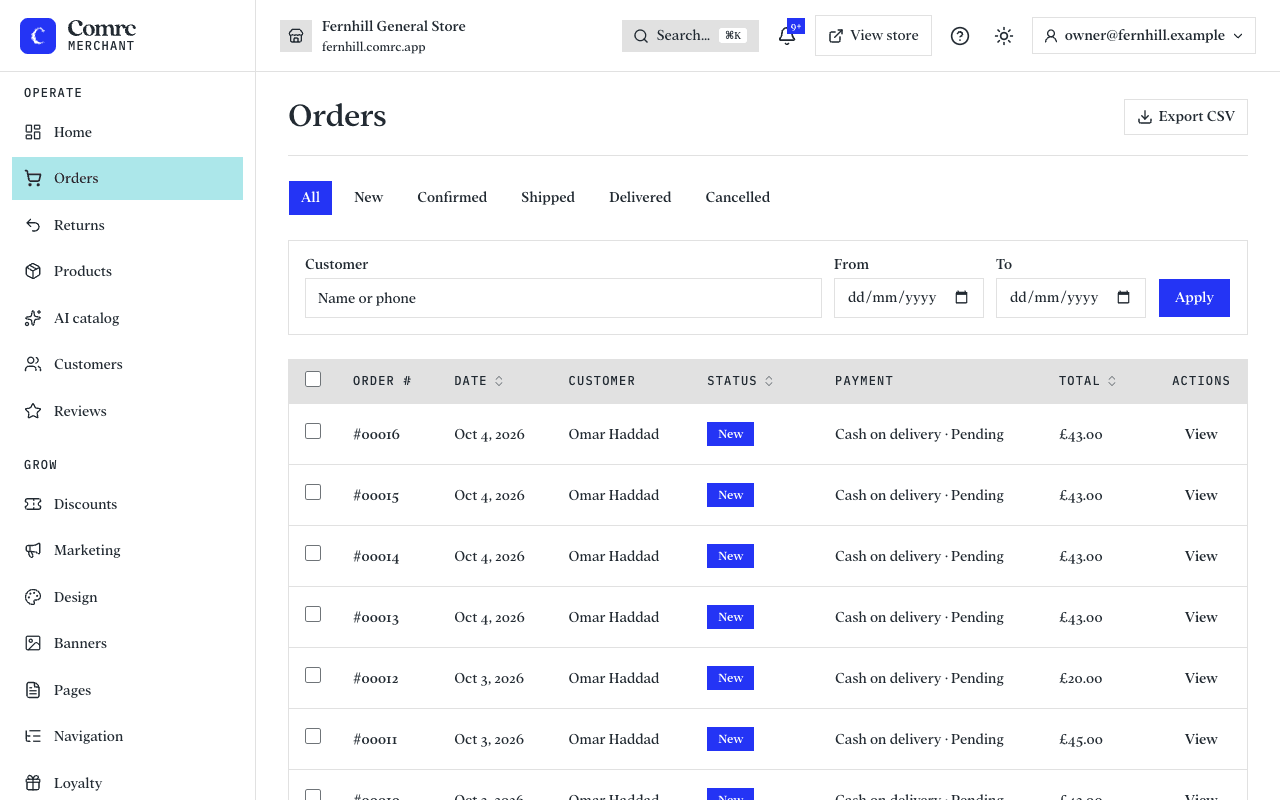
Every order your customers place appears in Orders, newest first. You get an alert on the bell, and Home shows how many are waiting for you.
The life of an order
- New — the order has just been placed. Check it, then press Confirm order.
- Confirmed — you've accepted it and are getting it ready.
- Shipped — it's on its way. When you mark an order shipped you can add the carrier and tracking number, and the customer sees them.
- Delivered — the customer has it.
An order can be cancelled at any point before it is delivered. Cancelling puts its stock back. Delivered and Cancelled are final.
The customer gets a confirmation email when they order and an update each time its status changes, and can follow it on their order page.
Inside an order
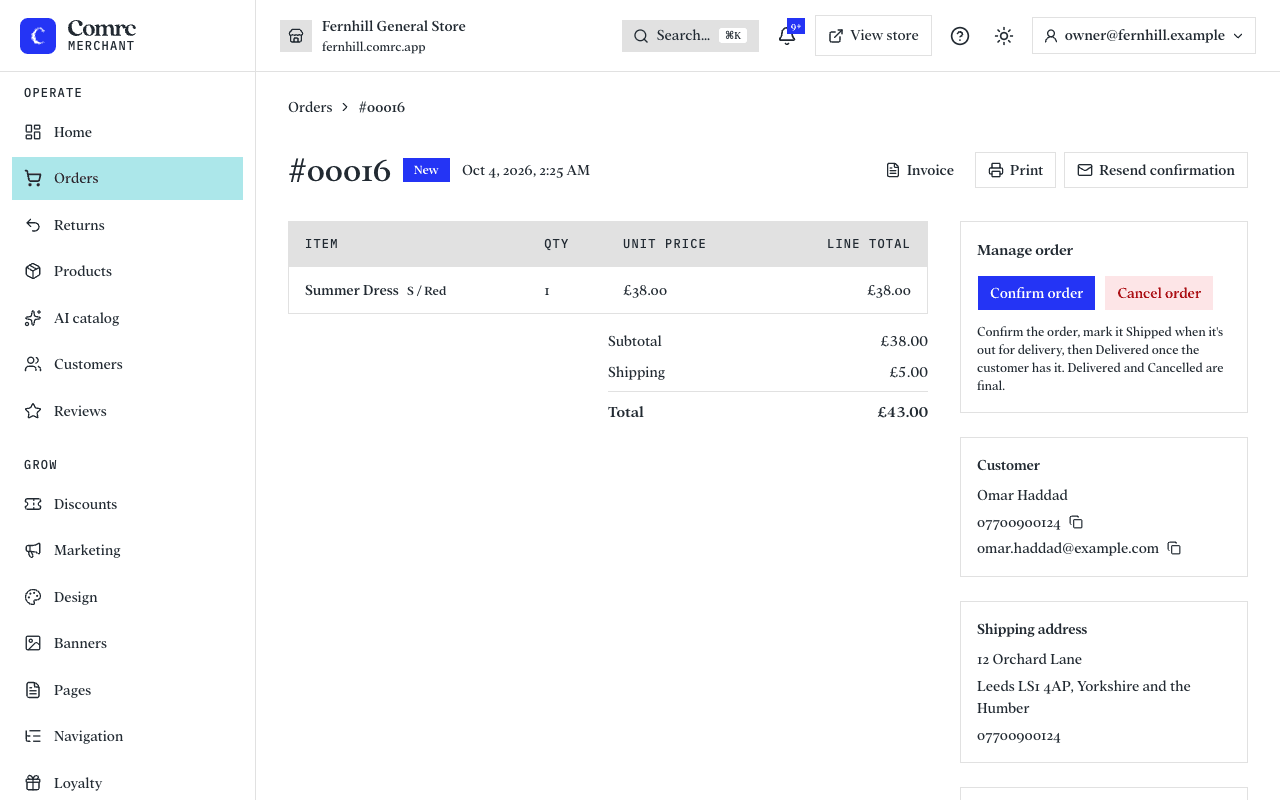
- Items, prices, delivery, discounts and the total, exactly as the customer was charged.
- The customer's contact details and delivery address, and any note they left.
- An internal note for your team. Customers never see it.
- A timeline of everything that has happened to the order, and who did it.
- Print, for a paper copy to pack from, and Invoice under More actions (see below).
- Resend confirmation, if the customer says the email never arrived.
Invoices
Open an order, then More actions → Invoice for a printable invoice. Press Print / Save as PDF and choose "Save as PDF" in your browser's print window to keep a copy; Back to order returns you to the order.
- It carries your store's name, address, email and phone, and your VAT registration number if you've entered one in Settings → General.
- It is headed VAT Invoice when VAT was charged on the order, and Invoice when it wasn't.
- VAT is shown as it was when the order was placed, so changing your VAT settings later doesn't alter old invoices. An order with items at different rates also shows each item's rate and a VAT summary for each rate.
- Discounts, loyalty points, delivery, service charge, tips and any gift card used are listed, so the lines add up to the total.
Cash on delivery
A cash order shows how much to collect. Once you have the money, press Mark collected on the order so it counts as paid (see Cash on delivery). An unpaid order has nothing to refund — if the customer changes their mind, cancel it.
Collection orders
An order the customer will collect skips delivery. Mark it ready for collection when it is prepared — the customer is told — and collected once they have it.
Working through a lot of orders
- Filter by status, by customer name or phone, and by date.
- Tick several orders, choose a status under "Move to…" and press Apply to update them together.
- Export CSV downloads the orders you are looking at, for your accounts or a spreadsheet.
Still stuck?
Email support@comrc.app and we'll help you out.