Using the kitchen display
See incoming orders as they're paid, start or reject them, and mark them ready.
In the console: Kitchen
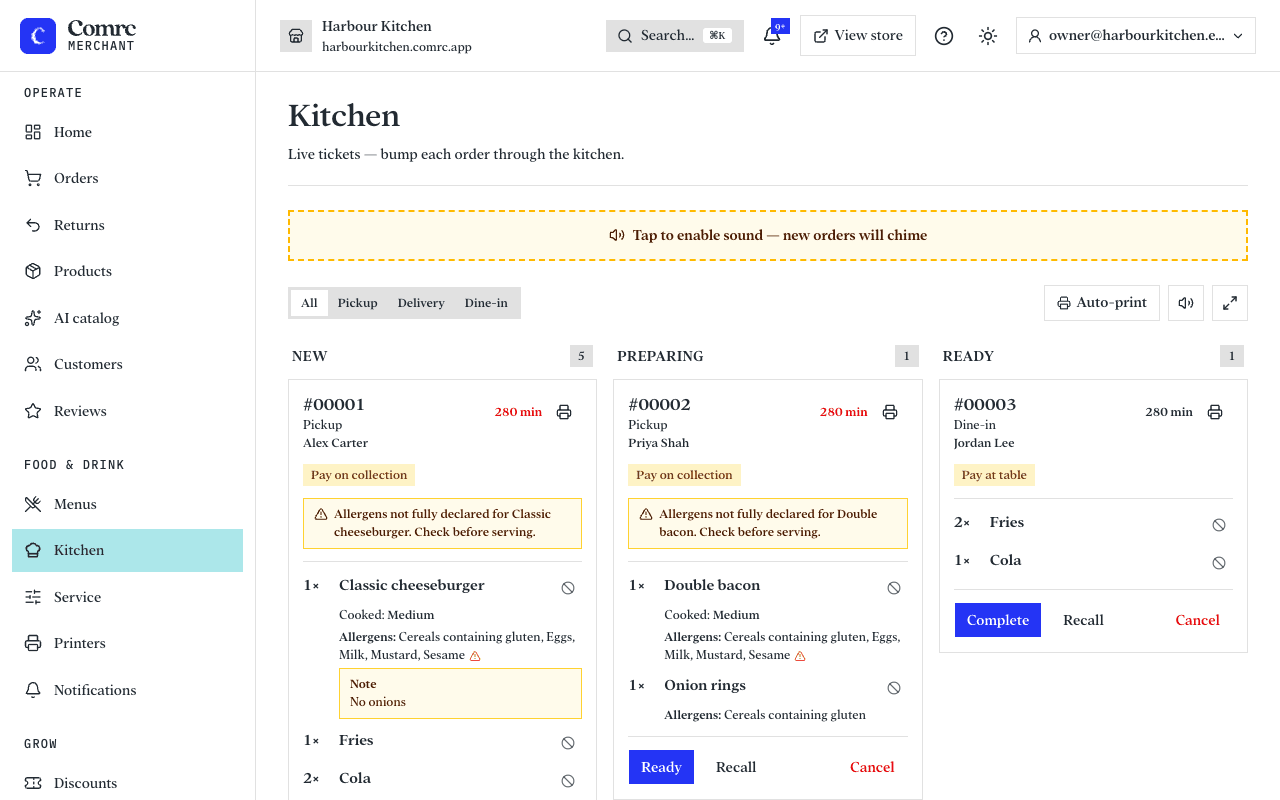
The kitchen display shows your food orders on a screen in the kitchen, so your team can work through them as they come in.
When orders appear
An order appears on the kitchen display once it's paid — so a card order shows up after Stripe has confirmed the payment. When a new order arrives, the display alerts you.
Working an order
- A new order sits in the New column. Press Start to begin preparing it, or Reject if you can't make it, for example if an item has sold out. You'll be asked for a reason, which the customer sees in their email, and a card payment is refunded automatically.
- When the food is ready, press Ready.
- Once it has been handed over, press Complete. For a delivery order you can press Out for delivery instead.
Tips
- Keep the display open on a dedicated screen or tablet in the kitchen, and make sure its sound is on so you hear alerts.
- Reject orders promptly if you can't fulfil them, so the customer isn't left waiting.
Still stuck?
Email support@comrc.app and we'll help you out.