Designing your store
Choose a template, set your colours and fonts, and build your home page from sections — with a live preview and nothing public until you publish.
In the console: Online store → Design
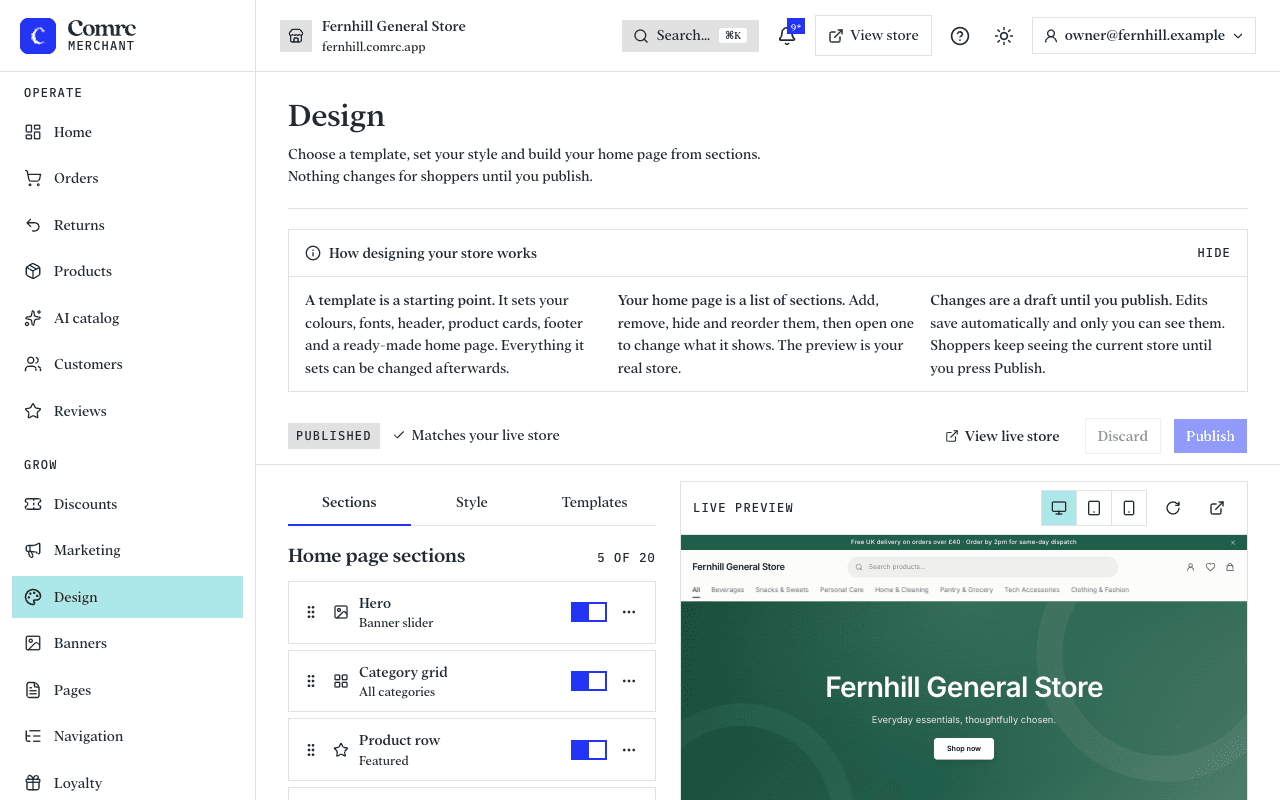
Design is where you decide how your store looks. The right-hand side is a preview of your real store, on a phone or a computer, and it updates as you change things.
Start with a template
A template sets your colours, fonts, header, product cards, footer and a ready-made home page in one go. Everything it sets can be changed afterwards. The templates are Classic, Boutique, Market and Minimal. Applying a different template later replaces your draft's style and sections, so pick one before you spend time on the details. The confirmation has a Keep my brand colour option if you only want to change the layout.
Set your style
- Brand colour — used for buttons and accents.
- Fonts — one for body text and, if you like, a different one for headings.
- Corners — sharp, soft or round.
- Header, product card and footer layouts.
Neutral style turns your brand colour off and goes back to the default look. Your logo and the announcement bar above the header are set in Settings → Branding (see Your logo, tagline and social links).
Build your home page
Your home page is a stack of sections. Add, remove, hide, duplicate and reorder them, then open one to change what it shows. A page can have up to 20 sections.
- Hero — a large banner at the top: your banner slider, or one image with a headline and button. You choose its height: short, medium or tall. With the banner slider and no banners, it shows your store name and tagline on your brand colour.
- Categories — links to your categories as tiles or circles.
- Products — a short row: featured, newest, on sale, from one category, or hand-picked.
- All products — your full catalogue, with filters if you want them. It can be added once.
- Text, and image with text — for your story, a promotion or a notice.
- Reviews — recent customer reviews. Shoppers only see it once your store has reviews showing.
- Newsletter — an email sign-up box.
- Trust bar — up to four short promises with an icon each, such as delivery and returns.
Drafts and publishing
Your edits save automatically as a draft that only you can see. Shoppers keep seeing the current store until you press Publish. It can take up to a minute for a published change to reach every shopper. Discard throws the draft away and goes back to what shoppers see now. Publish shows you a summary of what will change first. The preview can be switched between desktop, tablet and phone sizes, or opened in a new tab.
Note For a restaurant, café or takeaway the home page is the menu, so there are no home sections to arrange. Your colour, fonts and corners still apply.
Still stuck?
Email support@comrc.app and we'll help you out.