Google Analytics, Meta Pixel and cookie consent
Connect your analytics and advertising tags, and how the cookie banner on your store works.
In the console: Settings → Tracking
You can connect Google Analytics to see how shoppers use your store, and a Meta Pixel to measure your Facebook and Instagram adverts. Both are optional.
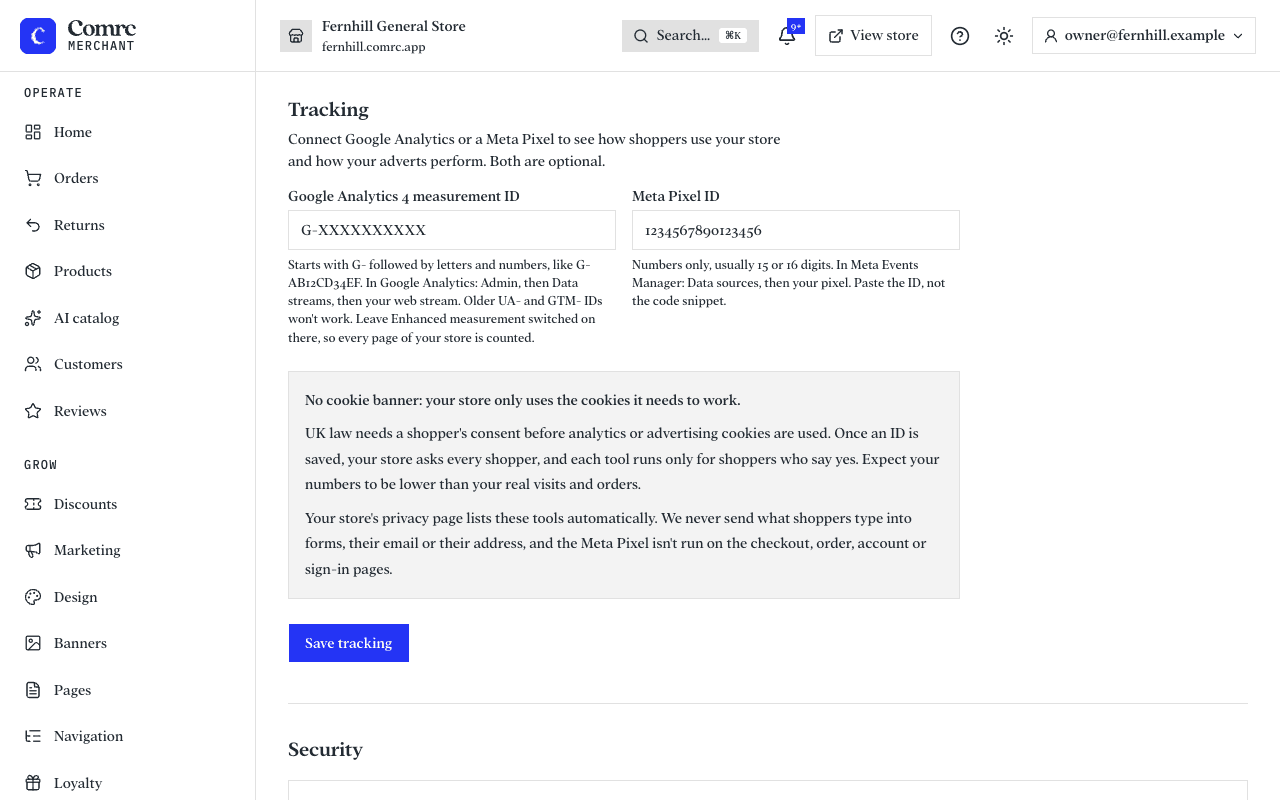
Connect them
- Google Analytics — paste your measurement ID. It starts with G-, like G-AB12CD34EF. In Google Analytics you'll find it under Admin, then Data streams, then your web stream. Older UA- and GTM- IDs won't work.
- Meta Pixel — paste your Pixel ID, a number you'll find in Meta Events Manager.
Once connected, your store reports the standard shopping events — a product viewed, added to basket, checkout started and a purchase, with its value.
The cookie banner
These tags set cookies, and UK law says shoppers must agree first. So as soon as you add either ID, your store shows a cookie banner.
- Nothing is loaded until the shopper accepts. If they decline, the tags stay off.
- Analytics and marketing are separate choices, and shoppers can change their mind from "Cookie settings" in your store's footer.
- A browser set to send a "do not sell or share" signal is treated as a decline.
- With no IDs set, there are no such cookies and no banner.
Note The cookie banner covers the tags you connect here. If you add other services to your store's pages, check whether they need consent too.
Still stuck?
Email support@comrc.app and we'll help you out.